Settings
Audio
This page describes audio settings: input device, optimized transcription, voice detection, sound feedback and gain.
Objective
Configure the input device, enable optimized transcription and adjust voice detection to get fast and accurate transcriptions.
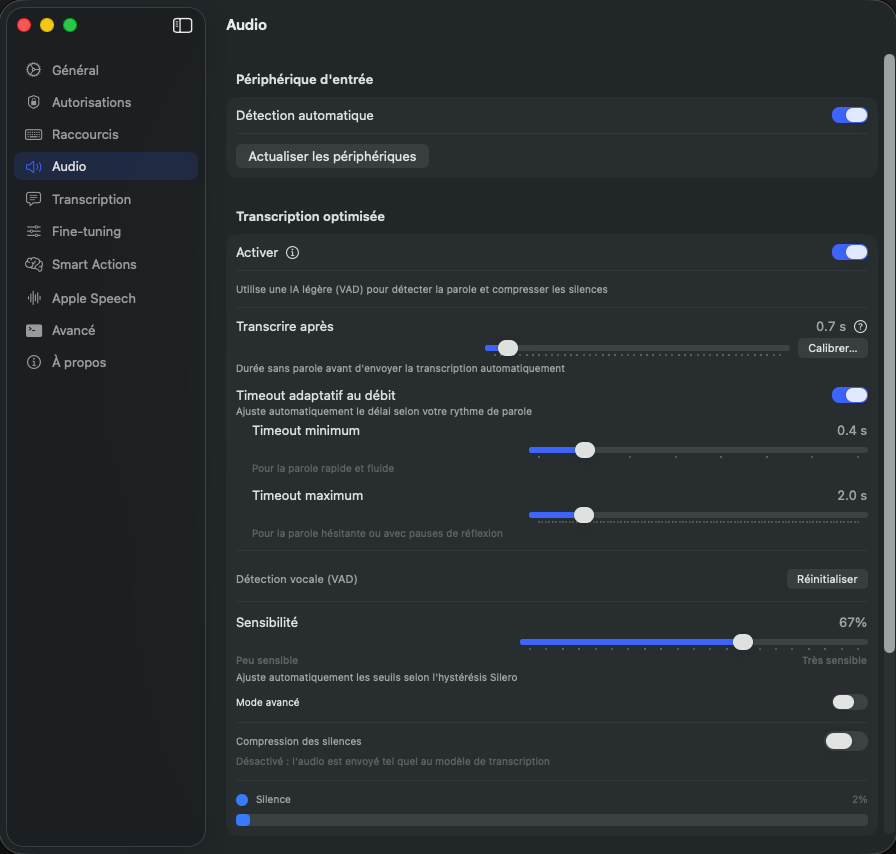
Input device
Oriloq automatically detects your Mac's default microphone. Enable Automatic detection to let the app follow the system device, or disable it to manually select a microphone. Click Refresh devices if a recently connected microphone does not appear in the list.
Optimized transcription
When enabled, Oriloq uses a lightweight AI (VAD) to automatically detect your speech and compress silences before sending audio to the transcription model. The result: faster transcriptions and reduced data usage. Disable this option if you prefer to send raw audio without any pre-processing.
Transcribe after
Sets the silence duration (in seconds) before Oriloq automatically sends the audio segment for transcription. A low value (e.g. 0.5 s) makes transcription nearly instant but requires fluent speech. A high value (e.g. 2 s) tolerates more pauses. Click Calibrate… to let the app measure your speech rate and automatically adjust this value.
Adaptive speech-rate timeout
When enabled, Oriloq automatically adjusts the silence delay based on your speech rate. The Minimum timeout applies when you speak quickly and fluently, while the Maximum timeout is used when your speech is hesitant or includes thinking pauses. This range allows the app to adapt in real time to your pace.
Voice detection (VAD)
The Voice Detection (VAD) section controls the sensitivity of the Silero model used to distinguish speech from silence. Adjust the Sensitivity slider between “Low sensitivity” and “High sensitivity” depending on your environment. Enable Advanced mode to access additional fine-tuning controls. Silence compression automatically removes silent passages from the audio before transcription; when disabled, audio is sent as-is. The Silence indicator shows the real-time percentage of detected silence. Click Reset to restore default values.

Sound feedback
Configure the sounds played by Oriloq: enable or disable the Start sound and Stop sound for recording. Enable Mute volume during dictation to automatically mute system volume while you dictate, preventing interference from music or notifications.
Input gain
When Automatic adjustment is enabled, Oriloq automatically sets the microphone input level to maintain optimal volume. Disable this option if you prefer to manually control the gain through your Mac's system settings.
Echo cancellation (AEC3)
Since version 1.0.10, Oriloq automatically filters system sounds during dictation thanks to WebRTC AEC3 technology. This ensures cleaner transcriptions even when your Mac is playing audio (music, video, ongoing call). Since 1.0.27, echo cancellation relies on the current version of WebRTC (AEC3), with an audio buffer that better absorbs muted microphones and timing drift. A real-world test is available in the settings: it keeps the microphone, the system reference and the result after cancellation locally, without any automatic upload.
- •Enabled by default in standard dictation.
- •Disabled by default in meeting mode when using a Bluetooth headset, to avoid unintended alteration of the captured sound; can be enabled on demand.
Meeting recording
Mode dedicated to capturing meetings (1.0.10): Oriloq records both the microphone and the system audio output simultaneously, with echo cancellation available to prevent remote participants' voices from polluting the local capture. A dedicated meeting Smart Action can then produce a structured summary (decisions, actions, blockers). Since 1.0.27, system audio is recorded by default for meetings.
Bluetooth safety net
When a Bluetooth headset experiences connection latency at the start of dictation, Oriloq temporarily switches to the Mac's built-in microphone so no word is missed, then smoothly returns to Bluetooth thanks to a 300 ms crossfade (1.0.10). The mechanism is fully automatic.