Dataset
To validate
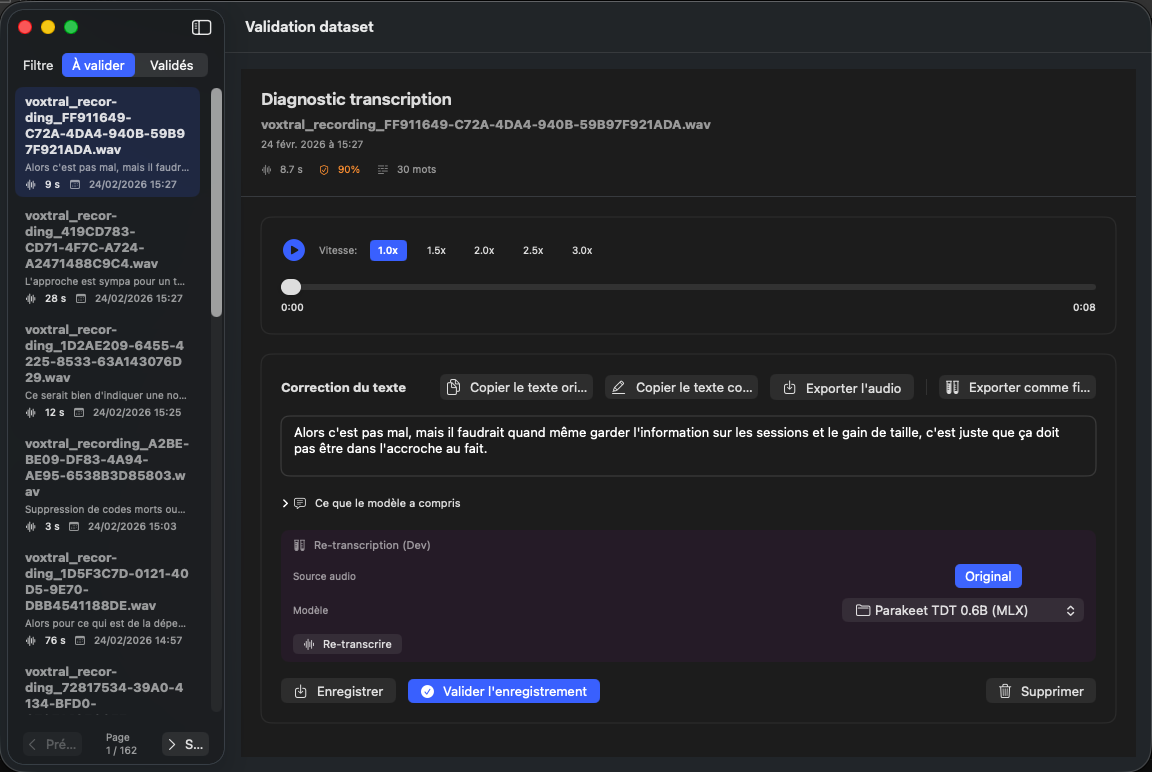
The dataset validation screen lets you review, correct, and validate your voice recordings to improve Oriloq's transcription accuracy. This page describes the 'To validate' view, accessible via the toggle at the top left of the screen.
Sidebar
The left sidebar displays the list of all your recorded datasets. Each entry shows the audio file name, a preview of the transcribed text, the duration, and the recording date. Pagination at the bottom of the list lets you navigate between pages when you have many recordings.
Transcription diagnostic
The central area displays the transcription diagnostic for the selected dataset. You'll find the full file identifier, its date, duration, validation rate, and detected word count.
Audio player
Just below the diagnostic, an audio player lets you replay the recorded track. You can adjust playback speed (1.0x, 1.5x, 2.0x, 2.5x, 3.0x) to properly verify that the pronunciation matches the transcribed text.
Text correction
The correction area lets you edit the transcribed text if needed. Buttons are available to copy the original text, copy the corrected text, export the audio, or export the file. If the transcription doesn't meet your needs, you can re-run a transcription using a different model to find the one that best fits your business requirements.
Validate or delete
Once satisfied with the transcription, click 'Validate recording' to confirm the dataset. This improves Oriloq's understanding of your speech patterns and the words you use. If the recording is not relevant, you can delete it via the 'Delete' button.
Validation set
In dataset curation, mark the entries that make up the validation set and filter the list to show only those (1.0.26).
See also: Validated datasets